How QuickBooks Online Can Cut Your Bookkeeping Time in Half
|
Getting your Trinity Audio player ready...
|
Yes, you save time just by using QuickBooks Online. You can save a lot more time by taking advantage of the automation it offers.
You know how it goes. You log into QuickBooks Online to record a customer payment. While you’re there, you realize there are some invoices you need to create and send. You must not have categorized and posted transactions for a while since there are a couple dozen in the Pending list. A customer has accepted an estimate, so you need to get that project moving.
Next time you look at the clock, you realize you’ve been working with your QuickBooks Online file for almost two hours. You don’t have that kind of time to spend on bookkeeping since you’re a small business, but what choice do you have?
QuickBooks Online gives you a choice. It has so much automation built in that you could probably cut your bookkeeping time by half if you used all the tools available. You’ll have to spend a bit of time learning how everything works, but you’ll more than make up for that time by the hours you’ll save. Let’s look at what the site can do to save you hours every month. Long-time QuickBooks Online users may know about all of this, but we’ll take a step back for new users.
Import Your Financial Transactions
This is the smartest step you can take to save an enormous amount of time. If you’re still entering bank and credit card transactions manually, you’re spending far more time than is necessary. And you’re defeating the purpose of using software, which is supposed to automate your work and avoid duplicate data entry.
QuickBooks Online allows you to connect most bank accounts, credit cards, and payment processors directly to the site. Transactions are automatically downloaded and ready for your review. Instead of typing dozens or hundreds of transactions each month, you’ll simply review and approve them. This single step can save numerous hours each month for many businesses. And it helps avoid transposition errors.
You may have hesitated to do this because you’re worried about online security. Intuit uses bank-grade safety protocols. You should do your part, too, by creating strong passwords, not accessing the site on public Wi-fi, etc.
Create Bank Rules
Repetitive data entry is a serious time waster. If you create transactions on a regular basis that need to be treated similarly, QuickBooks Online allows you to create Bank Rules for them. From the home page, click the Accounting App, then Rules, then New rule in the upper right corner. In the panel that opens, define your rule. If you want every expense whose Bank text contains Staples to be automatically categorized as Office supplies, for example, you’d fill it out as shown in the image below.
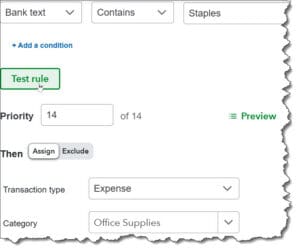
You can create Bank Rules to automate transaction categorization, for example.
Upload Receipts Immediately
Do you have piles of paper receipts on your desk or in an envelope somewhere? It’s important to be able to match receipts to expense transactions so you’ll have them stored safely for tax prep time. You need to know why you spent the money and whether it can be claimed as a business expense. Using the QuickBooks Online mobile app, you can snap photos of receipts. The app will extract key information and attach the image to the transaction. You can add or edit anything that gets lost in translation.
Set Up Recurring Transactions
This is another example of smart automation in QuickBooks Online. If you send invoices or pay bills that are identical or very similar on a regular basis, you can create Recurring Transactions. These can be transactions like:
- Rent payments,
- Loan payments,
- Monthly service invoices,
- Subscription fees, and,
- Membership dues.
The site will either remind you when it’s time to dispatch them and allow you to review/edit them or just send them through automatically (be careful with the latter). You can do this by creating a transaction and clicking Make recurring at the bottom of the page or by opening the Accounting App and clicking Recurring transactions.
Reconcile Weekly Instead of Monthly
No one likes to reconcile accounts. But it needs to be done on a regular basis to avoid disastrous errors in your bookkeeping. Businesses typically do this monthly but consider taking it on once a week. You’ll catch problems earlier, and the task won’t be so time-consuming. Transactions will still be fresh in your mind, so categorization should be accurate. To get started, open the Accounting App and click Reconcile. You’re likely to need our help with this if you’ve never done it using software, though QuickBooks Online makes it easier than the old paper method.
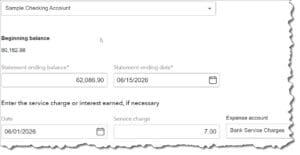
We suggest you consider reconciling your accounts weekly rather than monthly. It will take less time, and errors will surface faster.
Schedule a Weekly Financial Checkup
Put it on your calendar so it doesn’t slip through the cracks. You can do any of the things on this list anytime, of course, but combining them into one session actually takes less time. Identifying problems early makes troubleshooting so much easier. Consider these items for your checklist (and add your own):
- Make sure you’ve reviewed all imported transactions and categorized any that need it.
- Run accounts receivable and accounts payable reports.
- Reconcile your bank accounts.
- Run a profit and loss report.
- Upload any receipts that you haven’t already.
And of course, take action on any problems you’ve uncovered.
Not sure how to handle something that’s come amiss? That’s what we’re here for. If you’re new to QuickBooks Online and don’t know how to do some of the tasks we’ve described here, we recommend you schedule a session or two with us. It’s much easier and faster to fix a problem that’s just begun than to have to track down the beginnings of one. We’re available to help.